Overlay Store
Introduced in FoliCon v5.3.0, the Overlay Store is a built-in community catalog where you can discover, preview, and install custom icon overlay styles created by the community.
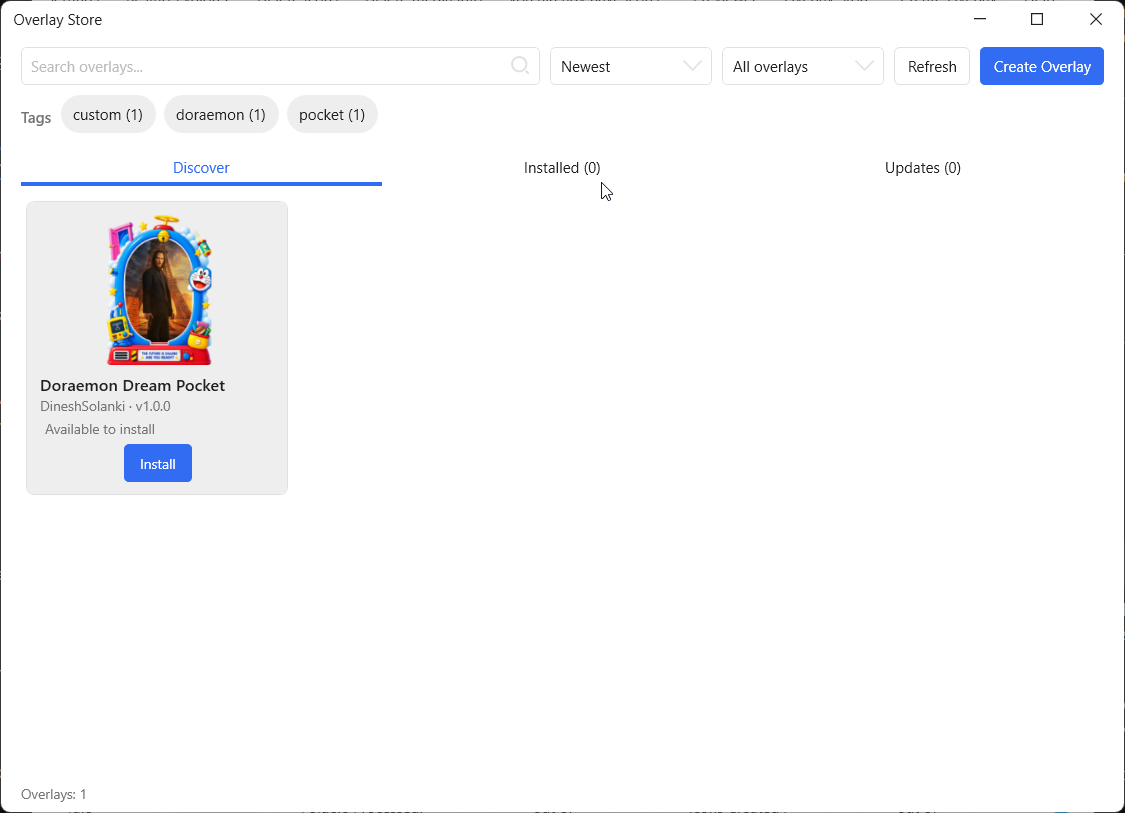
Opening the Overlay Store
To open the Overlay Store, navigate to:
Features
In the Overlay Store, you can:
Browse all available overlays from the community catalog.
Search by name, author, description, or tags.
Filter overlays by category.
Preview an overlay before installing it to see exactly how it would look on a folder icon.
Install an overlay with one click.
Update an overlay when a new version is available.
Remove installed overlays.
Track download and installation progress per overlay.
Managing Overlays
How to install an overlay
Open the Overlay Store by clicking in the Poster Icon Config window.
Browse or search for an overlay you like.
Select an overlay to see its details and preview it.
Click the Install button.
About the Community Catalog
The overlay catalog is powered by the public FoliCon-Overlays repository on GitHub. Community members can submit their own overlays there to share with everyone. Overlays are data-driven packages, which means they do not require a FoliCon update to be distributed or updated.